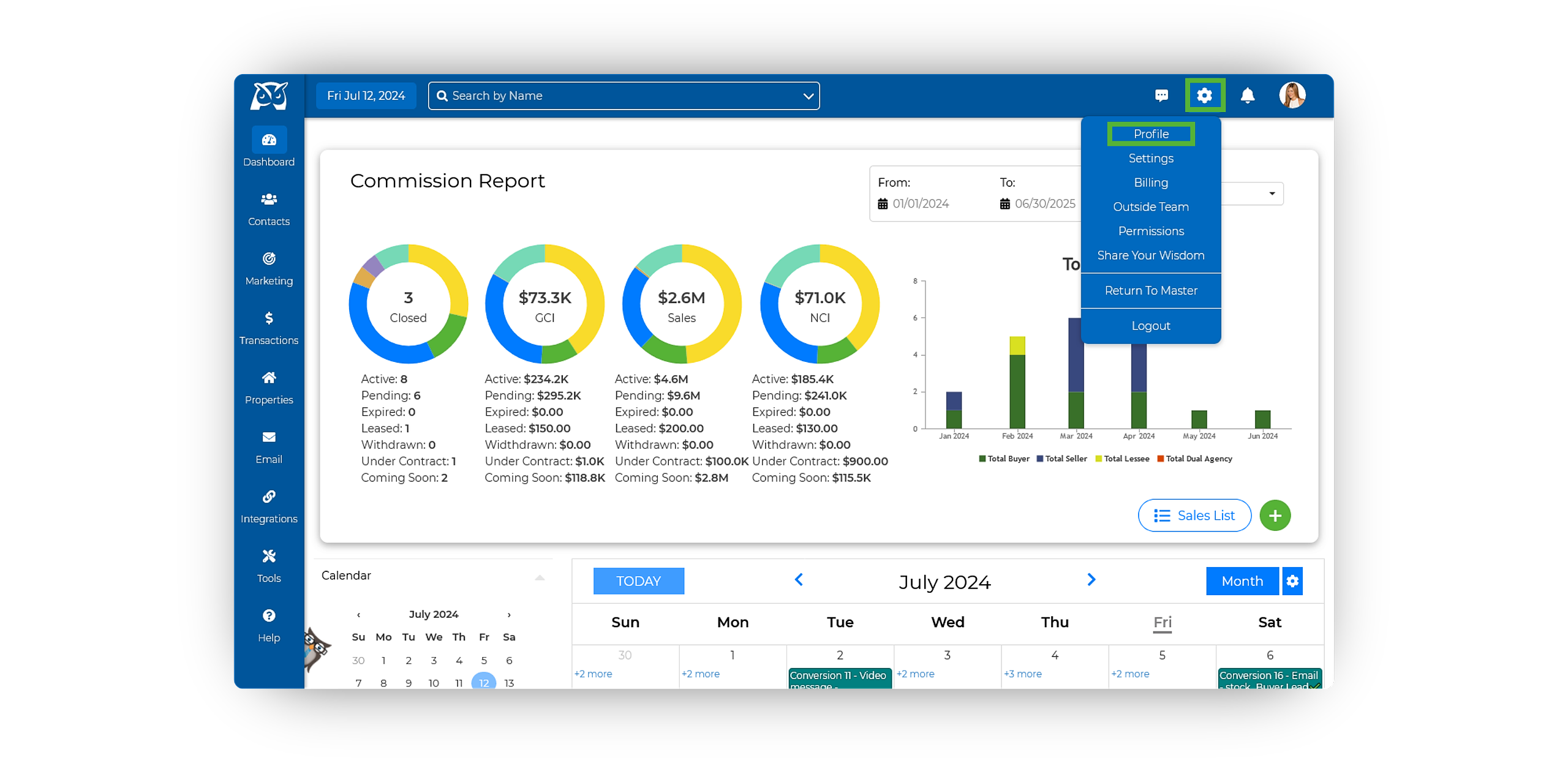
- Navigate to your Profile by clicking on the gear icon located in the upper right-hand corner, then select Profile.
- On your profile, locate the Inside Team section beneath your Account Details, then click View Profile beneath the desired Inside Team member's card.
- Beneath the Profile Details, hover over the Profile Login, then click on the red trashcan icon.
- Once selected, a pop-up window will appear confirming if you wish to remove the inside team login. To proceed, click Remove.
- You will then be redirected to the Billing page where you can update your subscription to remove the additional login fee.
On the billing page, you must click the Make/Update Payment button to fully remove the login. Before doing so, ensure your subscription is up to date and email billing@wiseagent.com to remove any unwanted, pending payments prior to removing the login.

Article suggestions