How To Add Your Canva Design To A Wise Agent Email
How To Add Your Canva Design To A Wise Agent Email
Canva is an online design platform that allows users to create professional-quality graphics, presentations, social media posts, and more. It offers an easy-to-use interface with a wide range of customizable templates, making it accessible for people with any level of design experience. You can benefit from using Canva by designing eye-catching newsletters or email templates to enhance your communication with clients!
Written by Ashley
Updated on November 1, 2024
Important To Note
Hyperlinks will only work if you download your design as a PDF (except flattened PDFs). Since PDFs can only be attached to emails, you'll need to download your design as a JPG or PNG image to embed it in the email body. Because JPG and PNG images do not support hyperlinks, we recommend avoiding their use in your designs.
The size ratio will vary amongst each design template; Using the steps below, ensure your design does not exceed a width of 650px-800px, letting the height adjust itself accordingly.
Step 1: Resize and Export Your Design
From the top menu, select Resize & Magic Switch, and select Custom size.
Click the lock on the aspect ratio, then enter a width of 650-800px. Once entered, check the box to the left of your width, then click Continue.
Next, select Resize This Design.
Once selected, the page will refresh with your updated sizing! To export, click Share from the editor menu bar.
From the File type dropdown, select PNG or JPG.
Ensuring you do not adjust the size, click Download to finish.
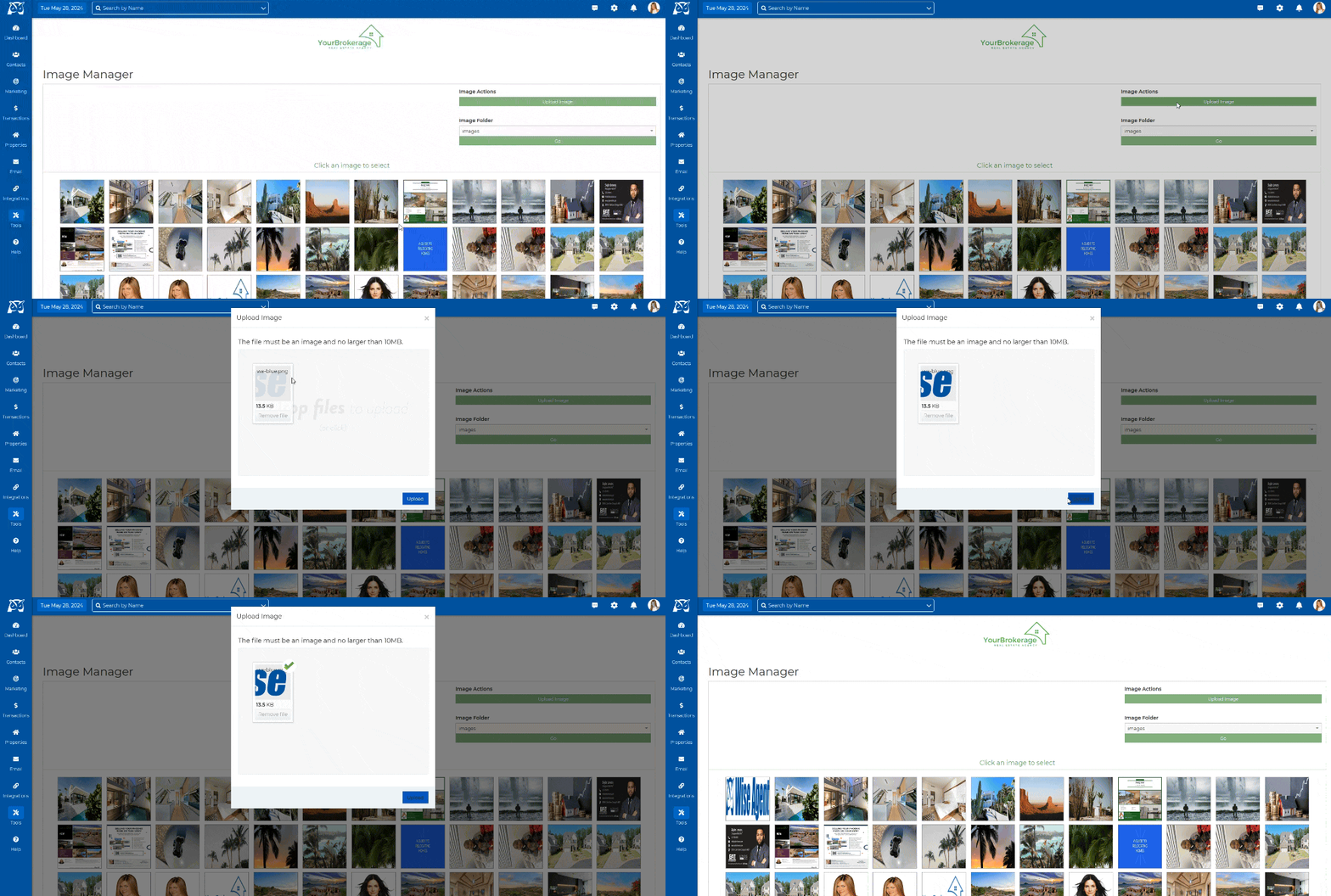
Step 2: Upload Your Design To The Image Manager
Login to your Wise Agent account.
From the sidebar, select Tools ➜ Images.
Within the image gallery interface, locate and click on the Upload button. Once selected, the Upload Image window should appear.
Drop your files into the designated spot or click to select images from your computer.
Once added, click on Upload and that's it!
Step 3: Add Your Design In An E-mail
From the sidebar, select Email ➜ Email Contacts.
In the toolbar above the body of your email, click on the Image icon.
When the window opens, click Browse Server.
Double-click on your recently uploaded design, then click OK.
Your Canva design will now be visible in the body of your email and is ready to be sent!
Thank you for leaving a rating!
Did you find this article helpful?
1 out of 1 people found this article helpful so far